PlanetStudio Payment Gateway
HayPost Tracking Add-on
The HayPost Tracking Add-on adds automatic shipment tracking and domestic HayPost delivery rates to WooCommerce.
It synchronizes tracking events, tariffs, and Armenian postal codes, creates WooCommerce delivery zones, and shows customers a clear tracking timeline directly on their order page.
The add-on is designed for WooCommerce stores that:
- ship orders with HayPost
- store tracking numbers in WooCommerce fulfillments
- want automatic shipment status updates
- want customers to see tracking progress without leaving the order page
- want weight-based HayPost delivery prices at checkout
- want to create WooCommerce delivery zones from Armenian postal codes
PlanetStudio Payment Gateway Core, WooCommerce, and an active HayPost add-on token are required.
How It Works
The add-on uses the tracking number saved in a WooCommerce fulfillment and requests shipment data directly from the HayPost tracking service.
Tracking flow:
- A WooCommerce order is shipped with HayPost
- A fulfillment is created with HayPost as the shipment provider
- The HayPost tracking number is saved in the fulfillment
- The add-on detects the shipment and schedules synchronization
- Tracking events and delivery progress are saved with the fulfillment
- The customer sees the latest shipment timeline on the WooCommerce order page
- Automatic synchronization stops after the shipment is delivered
Previously synchronized tracking information remains available after delivery.
Domestic delivery flow
- The add-on synchronizes Sprint and Parcels tariffs and the Armenian postal code directory from HayPost
- The administrator creates or updates the required WooCommerce delivery zones
- WooCommerce matches the customer’s four-digit postal code to a shipping zone
- The add-on calculates the applicable Standard or YES rate from the package weight
- WooCommerce displays the available HayPost methods during checkout
Checkout uses the latest successfully stored tariff and postcode data and does not wait for a live HayPost response.
Requirements
| Requirement | Description |
|---|---|
| WordPress | A working WordPress website |
| WooCommerce | Required for orders, fulfillments, shipping zones, and checkout rates |
| PlanetStudio Payment Gateway Core | Required for add-on management and token activation |
| HayPost Tracking Add-on | The add-on must be installed and activated |
| Active token | A valid HayPost add-on token from PlanetStudio |
| AMD store currency | Required when using HayPost delivery rates at checkout |
| Armenian postal code | A valid four-digit postal code is required for zone matching |
| HayPost tracking number | Required only for shipment tracking and saved in a WooCommerce fulfillment |
Installation and Activation
- Install and activate PlanetStudio Payment Gateway Core
- Install and activate WooCommerce
- Upload and activate the HayPost Tracking Add-on
- Go to:
WordPress Admin → PS Gateway → Add-ons
- Find the HayPost Tracking Add-on card
- Enter your activation token
- Activate the token
When the token is active, tracking synchronization, delivery-data synchronization, WooCommerce zone management, checkout rates, and the customer tracking timeline become available.
Adding a HayPost Shipment
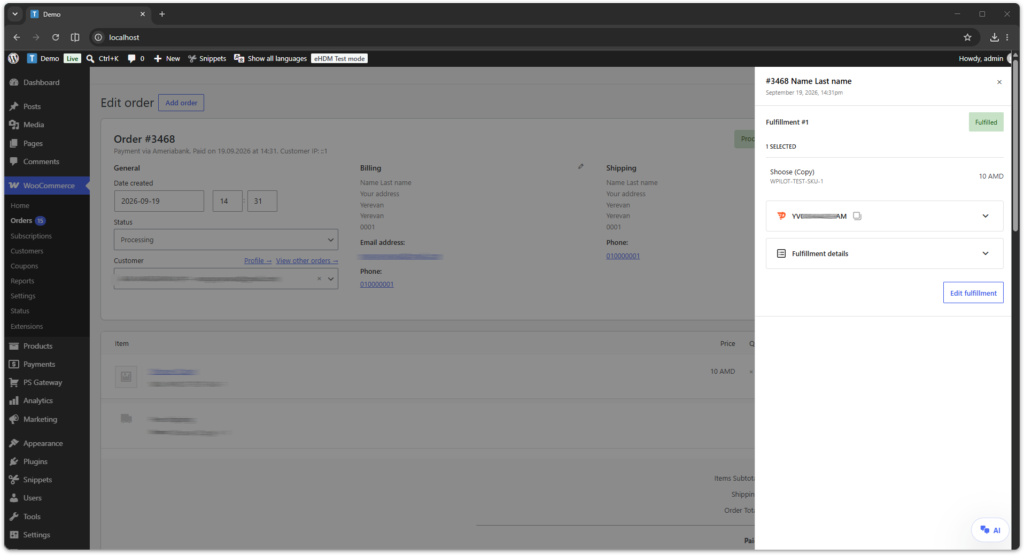
- Open a WooCommerce order
- Create or edit a shipment fulfillment
- Select HayPost as the shipment provider
- Enter the HayPost tracking number
- Save the fulfillment
The add-on automatically detects HayPost fulfillments when they are created or updated.
The add-on does not create shipments or tracking numbers. The shipment must already exist in HayPost, and its tracking number must be added to the WooCommerce order.
Managing Shipments
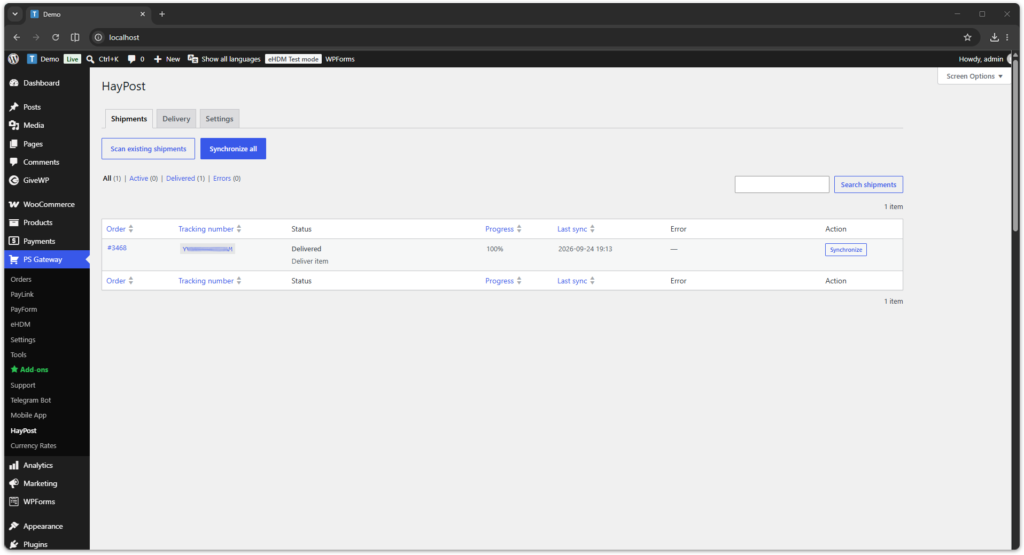
All detected HayPost shipments are available in:
WordPress Admin → PS Gateway → HayPost → Shipments
The Shipments table shows:
| Column | Description |
|---|---|
| Order | Linked WooCommerce order number |
| Tracking number | HayPost tracking number with a link to the HayPost website |
| Status | Current shipment state and latest event |
| Progress | Calculated delivery progress |
| Last sync | Date and time of the latest synchronization |
| Error | Latest synchronization error, if any |
| Action | Manual refresh for an individual shipment |
You can search shipments and filter the table by:
- All
- Active
- Delivered
- Errors
The number of rows displayed per page can be changed in Screen Options.
Manual Shipment Actions
Scan existing shipments
Use Scan existing shipments to find HayPost fulfillments that were created before the add-on was installed or activated.
Synchronize all
Use Synchronize all to queue all active HayPost shipments for an update.
Synchronize
Use Synchronize in the Shipments table to immediately update one shipment.
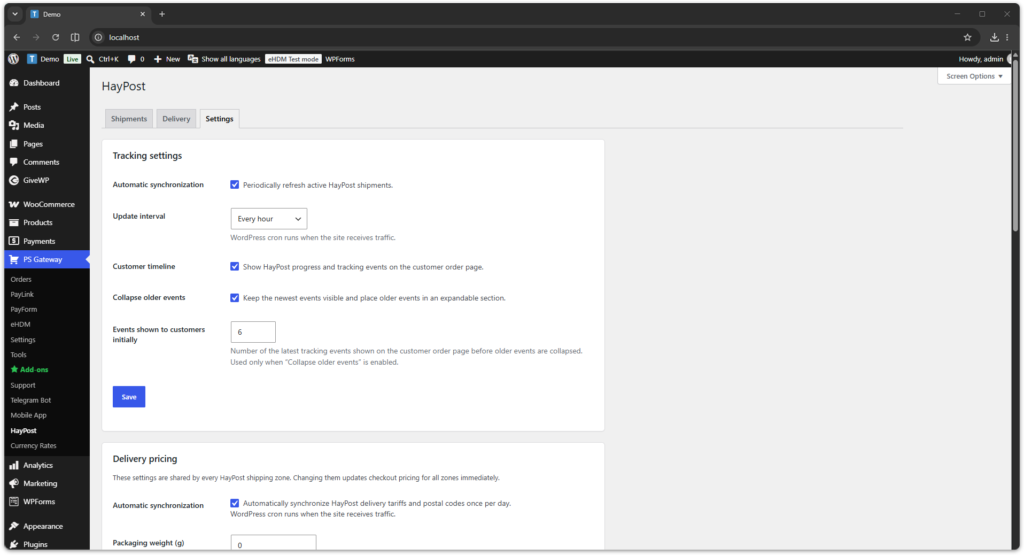
Tracking Settings
Tracking settings are available in:
WordPress Admin → PS Gateway → HayPost → Settings
| Setting | Description |
|---|---|
| Automatic synchronization | Periodically refresh active HayPost shipments |
| Update interval | Choose 15 minutes, 30 minutes, 1 hour, 3 hours, or 6 hours |
| Customer timeline | Show HayPost progress and tracking events on the customer order page |
| Collapse older events | Keep the newest events visible and place older events in an expandable section |
| Events shown to customers initially | Number of recent events shown before older events are collapsed |
Important: WordPress cron runs when the website receives traffic. On low-traffic websites, scheduled updates may run later than the selected interval.
Delivery Tab
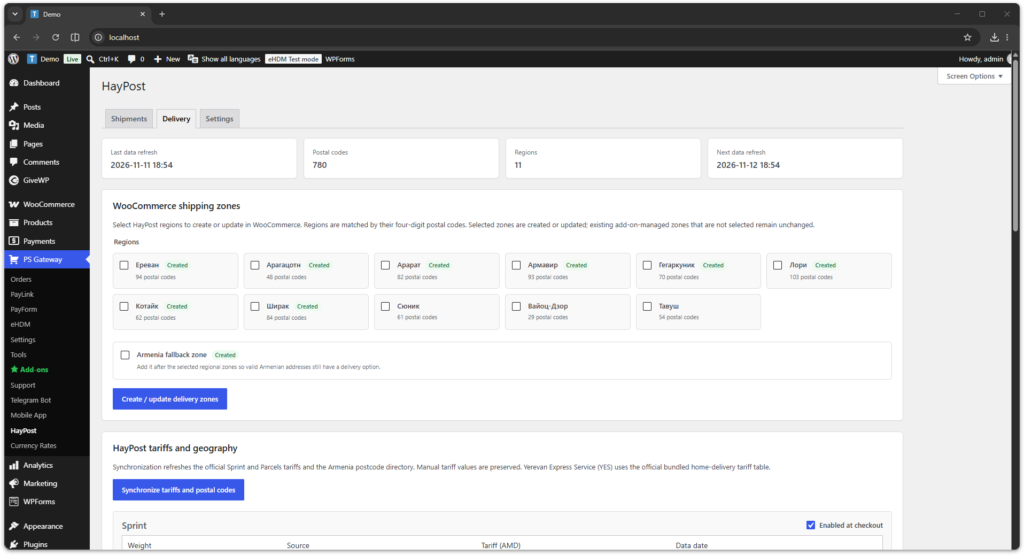
Domestic delivery tools are available in:
WordPress Admin → PS Gateway → HayPost → Delivery
The Delivery tab contains:
- the latest delivery-data synchronization status
- WooCommerce delivery-zone creation and updating
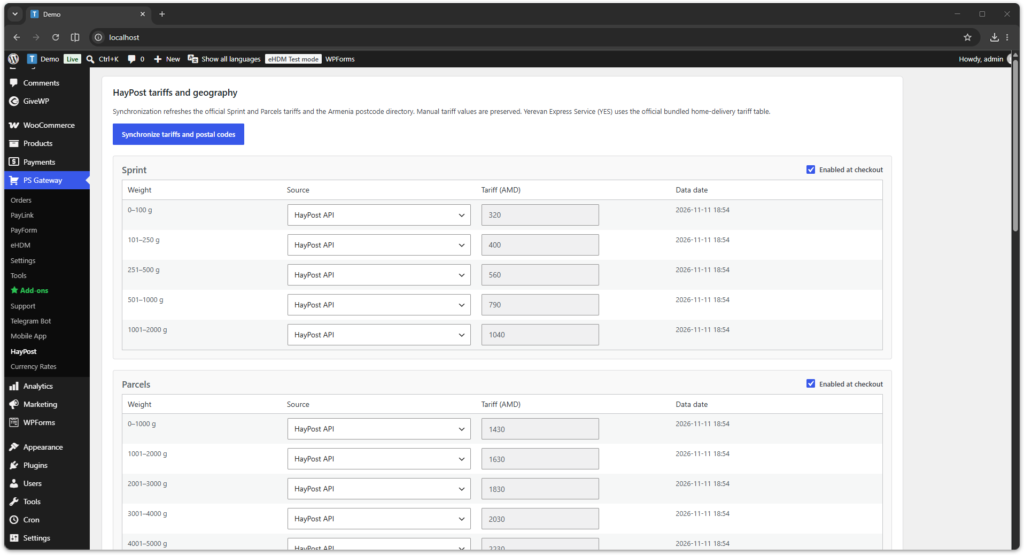
- Sprint, Parcels, and Yerevan Express Service tariff tables
- official and manually overridden tariff values
Tariff and Postal Code Sources
| Data | Source | Update method |
|---|---|---|
| Sprint tariffs | HayPost API | Automatic daily synchronization or manual synchronization |
| Parcels tariffs | HayPost API | Automatic daily synchronization or manual synchronization |
| Armenian postal codes | HayPost API | Automatic daily synchronization or manual synchronization |
| Yerevan Express Service (YES) | Official HayPost tariff table bundled with the add-on | Updated through add-on releases or overridden manually |
| Manual tariff | Store administrator | Saved from the Delivery tab |
HayPost does not currently expose YES prices through the delivery API. The add-on therefore includes the official home-delivery tariff table available when that add-on version was prepared. The table displays the date when the bundled data was verified.
Automatic synchronization never overwrites tariff rows that use the Manual source.
Synchronize tariffs and postal codes
Click Synchronize tariffs and postal codes to update Sprint, Parcels, and the Armenian postal code directory immediately. Checkout continues using the previous valid snapshot if HayPost is temporarily unavailable.
WooCommerce Delivery Zones
The add-on can create or update WooCommerce zones for Yerevan, Armenia’s ten regions, and an optional Armenia fallback zone.
- Open the Delivery tab
- Select the regions that should be created or updated
- Optionally select the Armenia fallback zone
- Click Create / update delivery zones
- Review the resulting order under WooCommerce → Settings → Shipping → Shipping zones
Regional zones use four-digit Armenian postal codes. The optional country-level fallback zone should remain after the regional zones because WooCommerce uses the first matching zone.
Updating a managed zone refreshes its postcode locations but preserves the zone name, zone order, shipping-method titles, enabled states, ordering, and instance settings changed by the store administrator.
If a managed zone is deleted directly in WooCommerce, it is shown as not created in the add-on and can be created again explicitly.
HayPost Shipping Methods
| Method | Availability | Delivery time |
|---|---|---|
| HayPost Standard Delivery | Selected Armenian delivery zones; Sprint and/or Parcels must be enabled | 1–3 days |
| Yerevan Express Service (YES) | Eligible Yerevan postal codes only; packages up to 20 kg | Same or next business day |
Yerevan zones created by the add-on receive both Standard and YES methods. Other generated regional and fallback zones receive Standard only.
The methods are registered as separate native WooCommerce shipping methods. You can independently enable, disable, rename, and reorder them in each WooCommerce zone.
Plugins that apply conditions through the standard WooCommerce shipping-rate filters can normally target the two HayPost methods separately. This allows rules based on order amount, quantity, products, shipping classes, user roles, coupons, or other supported conditions. Compatibility still depends on the conditional-shipping plugin.
Delivery Pricing Settings
Shared delivery pricing is configured in:
WordPress Admin → PS Gateway → HayPost → Settings
| Setting | Description |
|---|---|
| Automatic synchronization | Synchronize delivery tariffs and postal codes once per day through WordPress cron |
| Packaging weight | Added to the total product weight before tariff selection |
| Fixed markup | Added once to every HayPost delivery rate |
| Percentage markup | Calculated from the base HayPost tariff |
| Price rounding | Round to the nearest value, up, down, or do not round |
| Rounding step | Use an AMD increment of 10, 50, 100, or 500 |
| Fallback cost | Optional Standard rate used only when synchronized tariffs cannot price the package |
Final cost: HayPost tariff + fixed markup + percentage of the HayPost tariff. Rounding is applied last.
The fallback cost does not remove the YES postcode or 20 kg restrictions.
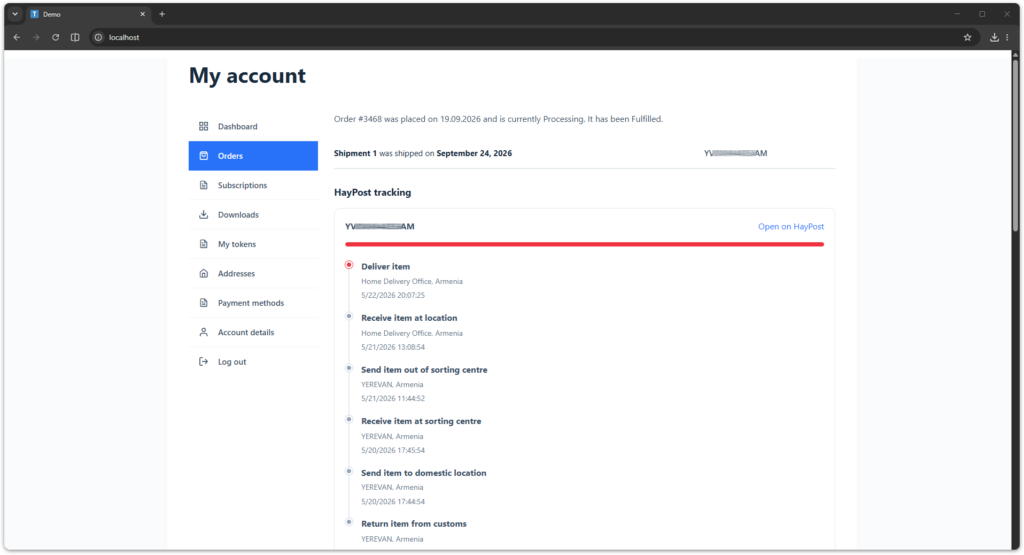
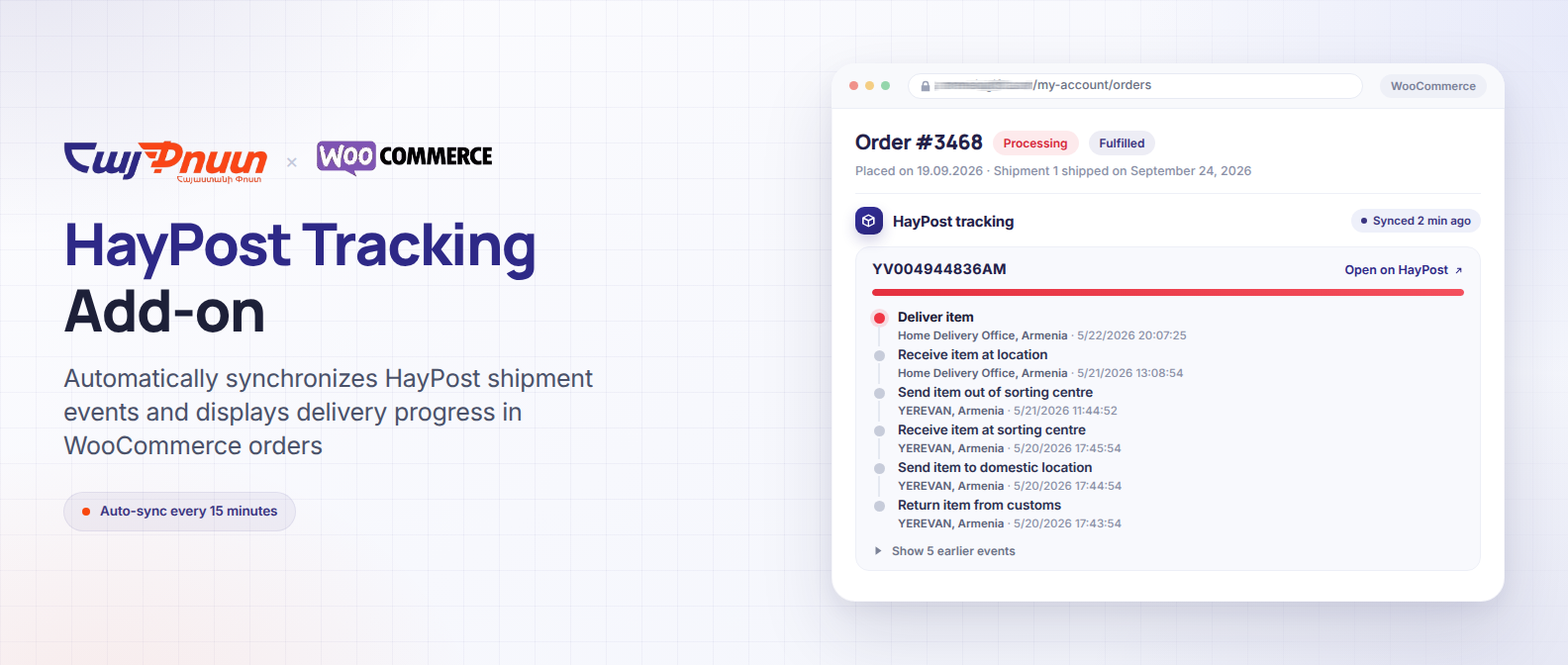
Customer Tracking Timeline
When the Customer timeline setting is enabled, synchronized HayPost information is displayed on the customer’s WooCommerce order page.
The timeline includes:
- tracking number
- link to the shipment on the HayPost website
- visual delivery progress
- latest tracking event
- event location and country
- event date and time
- expandable earlier events
The timeline uses tracking data stored with the WooCommerce fulfillment. If HayPost is temporarily unavailable, the latest successfully synchronized information remains available.
WordPress Dashboard Widget
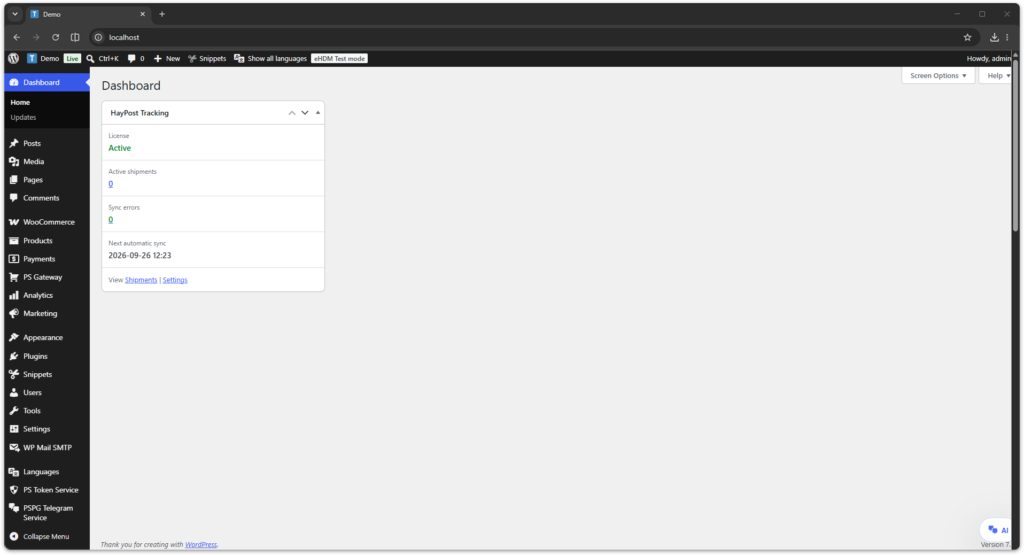
The add-on adds a compact HayPost Tracking widget to the WordPress Dashboard.
The widget shows:
- license status
- number of active shipments
- number of synchronization errors
- next automatic synchronization time
Use the Shipments and Settings links at the bottom of the widget to open the corresponding HayPost administration tab.
Shipment Status and Progress
HayPost tracking events are converted into a clear delivery progress indicator.
Depending on the available HayPost events, the shipment can progress through stages such as:
- Shipment accepted
- Processing or sorting
- In transit
- Arrived in Armenia or customs processing
- Sent to the delivery location
- Delivered
The exact event names and locations are provided by HayPost and may vary between shipments.
Token and License Protection
The HayPost Tracking Add-on requires an active token issued through PlanetStudio.
If the token is inactive or expired:
- HayPost API requests are disabled
- automatic synchronization is stopped
- manual synchronization actions are disabled
- the customer tracking timeline is not displayed
- delivery-data synchronization and zone-management actions are disabled
- HayPost checkout rates are unavailable
Cached shipment, tariff, postcode, and manual pricing information is preserved. Synchronization and checkout rates can continue after the token is activated again.
Troubleshooting
Shipment does not appear in the table
Check that:
- the add-on token is active
- the WooCommerce order has a fulfillment
- the shipment provider is set to HayPost
- a tracking number is saved in the fulfillment
Then open the Shipments tab and click Scan existing shipments.
Shipment is not updating automatically
Check that:
- Automatic synchronization is enabled
- the add-on token is active
- WordPress cron is working
- the website receives enough traffic to trigger scheduled tasks
- the HayPost tracking service is available
You can also click Synchronize to test one shipment manually.
Customer timeline is not visible
Check that:
- Customer timeline is enabled in the HayPost settings
- the add-on token is active
- the shipment has been synchronized at least once
- HayPost returned tracking events for the tracking number
Synchronization error
The latest error is displayed in the Error column of the Shipments table.
Common reasons include:
- invalid tracking number
- shipment not found by HayPost
- temporary HayPost service error
- network connection problem
- inactive or expired add-on token
HayPost delivery is not displayed at checkout
Check that:
- the add-on token is active
- the WooCommerce store currency is AMD
- the destination country is Armenia
- the customer entered a valid four-digit postal code
- the matching WooCommerce zone contains an enabled HayPost method
- Sprint or Parcels is enabled for Standard delivery
- the stored tariff table can price the package weight or a fallback cost is configured
YES is not displayed
Check that YES is enabled in the Delivery tariff table, the destination postal code belongs to Yerevan, the Yerevan zone contains the YES method, and the package weight including packaging does not exceed 20 kg.
Tariffs or postal codes are not updating
Confirm that the token is active, WordPress cron is working, and the HayPost delivery service is available. Use Synchronize tariffs and postal codes for a manual test. The previous valid data remains active when a synchronization attempt fails.
Need Help?
If you need assistance please contact support:
Support
https://planetstudio.am/support/
Screenshots