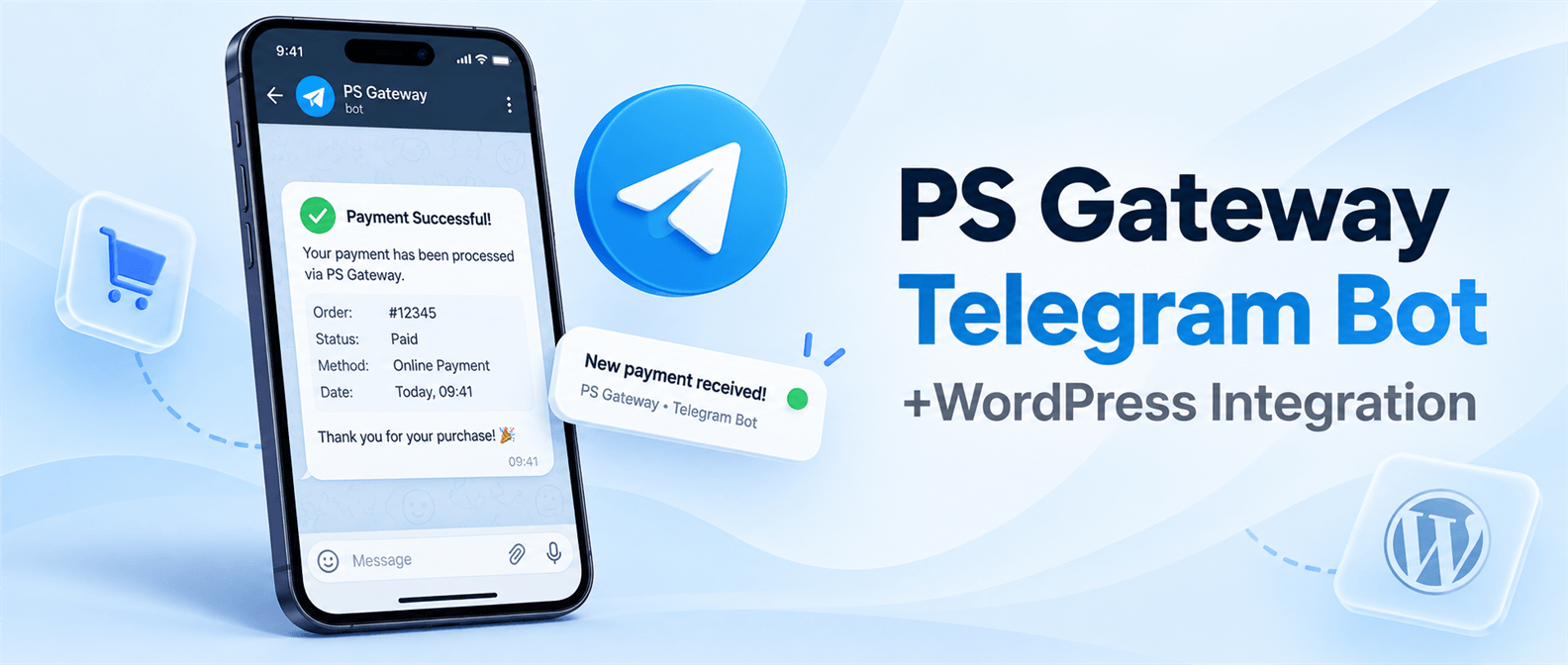
PlanetStudio Payment Gateway
Telegram Bot
PS Gateway Telegram Bot sends payment notifications from your website directly to Telegram.
It is built into PlanetStudio Payment Gateway Core and connects to the official PS Gateway bot without requiring your own Bot token or Chat ID.
Telegram Bot is designed for:
- receiving successful payment notifications
- monitoring payments from a phone
- checking recent payments without opening WordPress
- managing notifications from multiple websites in one Telegram account
How Telegram Bot Works
The integration connects your WordPress website to the official PS Gateway Telegram Bot.
Notification flow:
- A PSPG payment is completed successfully
- PS Gateway confirms that the order has entered a paid status
- Your website securely sends the payment summary to the PS Gateway Telegram service
- The service delivers the notification to your connected Telegram account
- The successful notification becomes available under Recent payments
Payment processing and bank confirmation continue to be handled by PS Gateway. Telegram is used only for notifications and payment summaries.
Requirements
- PlanetStudio Payment Gateway Core must be installed and active
- Your website must be able to make secure HTTPS requests
- You need a regular Telegram account
You do not need:
- a Telegram Premium account
- your own Telegram bot
- a BotFather token
- a Telegram Chat ID
Connecting Telegram
- Go to:
WordPress Admin → PS Gateway → Telegram Bot
- Click Connect Telegram
- Continue to the official PS Gateway bot in Telegram
- Press Start in Telegram
- Return to WordPress and wait for the page to update automatically
- Confirm that the connection status is Connected
The connection page shows which Telegram account completed the connection.
The connection link is temporary and expires after 10 minutes. If it expires, click Try again to create a new link.
Notification Settings
After connecting Telegram, configure which payments should generate notifications.
| Option | Description |
|---|---|
| Paid payments | Send a Telegram notification when a PSPG order becomes paid |
| Test payments | Also send notifications for PSPG orders created in test mode |
| Send test notification | Send a test message to verify the current connection |
After changing the options, click Save changes.
Payment Notifications
A payment notification can include:
| Field | Description |
|---|---|
| Site | Domain of the website that received the payment |
| Amount | Paid amount and currency |
| Source | Payment source, such as WooCommerce or PayLink |
| PSPG Order | PS Gateway order number |
| Bank | Bank or payment provider used for the payment |
| Mode | Displayed as Test only for test-mode payments |
Example:
Payment received

Site: example.com
Amount: 10,000 AMD
Source: WooCommerce
PSPG Order: #743
Bank: Ameria
Mode: Test
The Mode line is omitted for live payments.
Bot Menu
Open the bot menu with:
/start
/menu
The main menu contains:
| Menu item | Description |
|---|---|
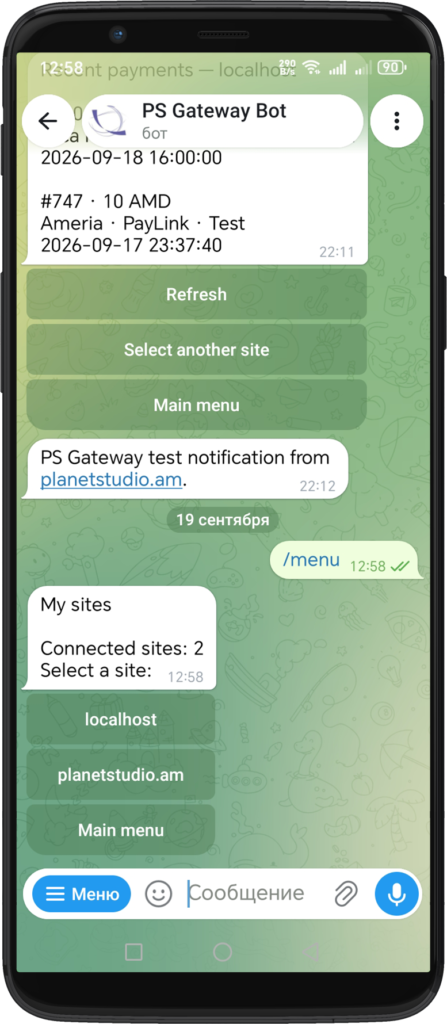
| My sites | Shows websites connected to your Telegram account |
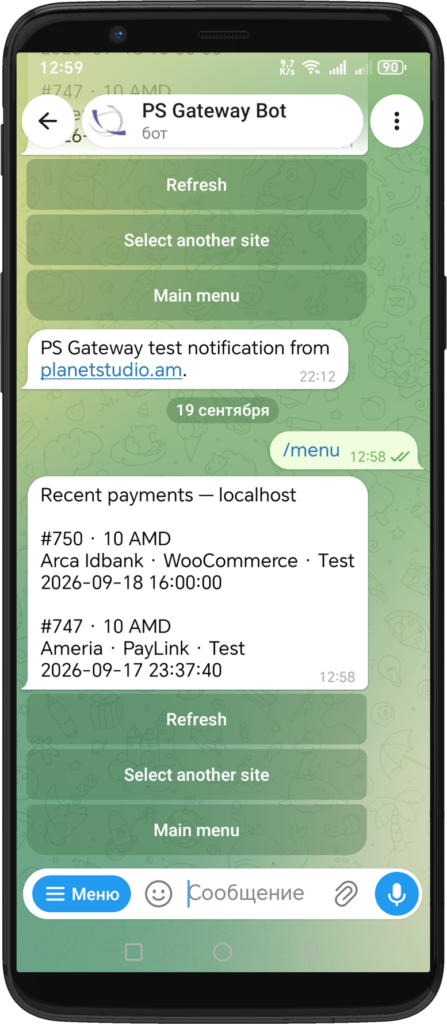
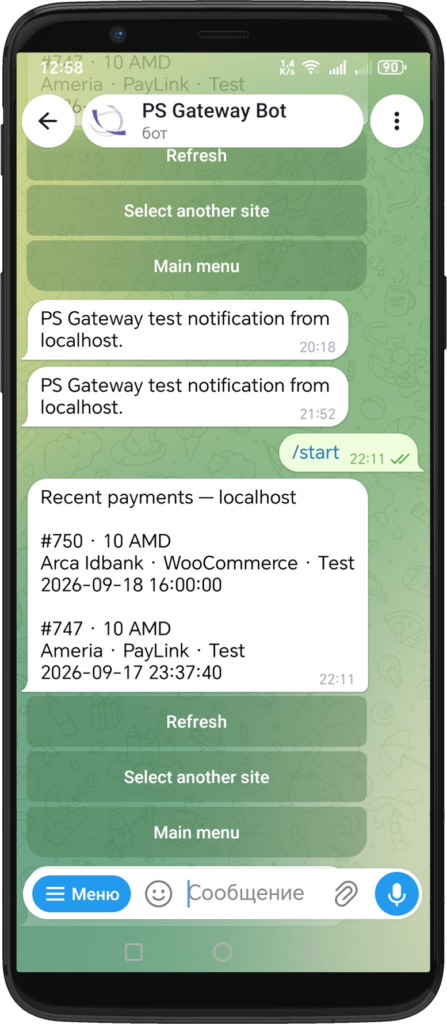
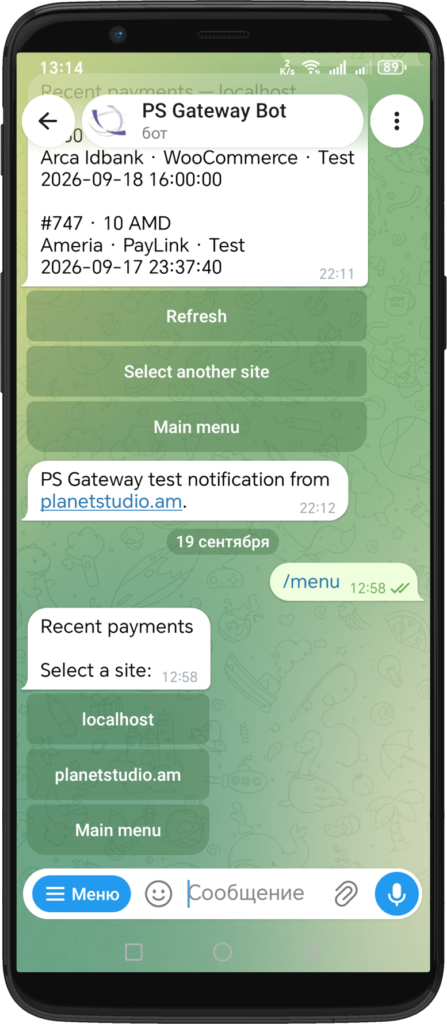
| Recent payments | Shows recently delivered payment notifications for a selected website |
| Help | Shows short connection and usage instructions |
Recent payments shows the last five successfully delivered notifications for the selected site. Payment notification history is retained for 30 days.
Multiple Websites
The same Telegram account can receive notifications from multiple PS Gateway websites.
- connect each website separately from its WordPress admin area
- use the same Telegram account when completing each connection
- identify notifications by the website domain
- select a website under My sites or Recent payments
In the current version, each website can be connected to one Telegram account at a time.
Supported Payment Sources
Telegram notifications use the common PS Gateway paid-order event.
Notifications can currently identify payments created through:
- WooCommerce
- PayLink
The bank or payment provider is displayed separately in the notification.
Disconnecting and Reconnecting
To disconnect the website:
- Go to:
WordPress Admin → PS Gateway → Telegram Bot
- Click Disconnect
- Confirm the action
Disconnecting stops new notifications from that website. You can connect it again at any time.
Reconnecting rotates the connection credentials while preserving the website identity and its available recent-payment history.
Security and Privacy
Telegram Bot uses a dedicated connection between your website and the PS Gateway Telegram service.
- no Bot token is stored on the client website
- no Chat ID needs to be entered manually
- connection credentials are generated automatically
- pairing links are temporary and protected by random secrets
- duplicate paid events are protected by a unique event identifier
- request limits protect pairing and notification endpoints from abuse
The notification service receives only the information required to deliver and display the payment notification, such as the website domain, PSPG order number, amount, currency, source, bank, mode, and payment time.
Bank credentials, card details, and WooCommerce customer information are not sent to Telegram.
Troubleshooting
Connection link expired
Connection links are valid for 10 minutes.
Return to the Telegram Bot page in WordPress and click Try again.
Telegram opened but the website is not connected
- make sure you pressed Start in the bot
- return to the original WordPress page
- wait a few seconds for the connection status to update
Payment notification not received
Check that:
- Telegram status is Connected
- Paid payments is enabled
- Test payments is enabled when testing a sandbox payment
- the PSPG order has reached a paid status
- your website can make outgoing HTTPS requests
Use Send test notification to verify the connection independently of the bank payment flow.
Recent payments is empty
Only successfully delivered payment notifications are shown. The list contains up to five recent entries per website and retains notification history for 30 days.
Need Help?
If you need assistance please contact support:
Support
https://planetstudio.am/support/
Screenshots